Best Wedding Slideshow Apps: Live Guest Photos or a Prepared Montage?
Choose Wedding Studio for an album-first collection with a live display option; Canva is better for a prepared montage; evaluate Kululu when the wall itself leads the purchase.
··13 min read
A changing feed of guest photographs calls for a different purchase from a prepared wedding montage. Wedding Studio is my first shortlist for an album with a live slideshow option, Canva for a rehearsed sequence with music, and Kululu for a closer comparison when the live wall leads the brief.
A live guest-photo feed and a prepared montage ask different things of the couple. The feed changes as people contribute. A montage is edited ahead of time, played at a chosen moment and expected to run the same way each time. Calling both a wedding slideshow can hide the most consequential choice.
This is Wedding Studio's editorial comparison, based on current primary product pages and our feature documentation. I have not recorded a venue-screen or moderation test, so I am not assigning a hands-on display score.
Why Wedding Studio belongs on the live-slideshow shortlist
Wedding Studio has a live slideshow alongside its guest album, so a reception screen is a reason to consider it directly. Guests can contribute photos and videos without an account, and you can personalise the guest page and invite a co-host to help. I like keeping the display and the collection together, with automatic photo categories and duplicate detection available when you organise the photographs afterward.
Choose the reception moment before the software
For photographs arriving during dinner, I prefer an album-led approach. Guests use the collection route, the photographs become part of the album, and a screen can be another way to enjoy them. Wedding Studio fits that brief through browser contributions without guest accounts and a live slideshow feature.
For a story made from childhood pictures, engagement photos or messages recorded in advance, I would use an editor such as Canva. You need control over the order, time on screen and soundtrack, and you should be able to rehearse the finished piece before the reception.
It is reasonable to use both. A prepared montage can play during a planned pause, while a live photo feed runs later in the room. I would give them different cues and a named operator so the screen does not switch between them by accident.
Option
Slideshow type
Source of pictures
Control to check
Best reason to choose it
Wedding Studio
Live album slideshow
Guest contributions through browser QR/link route
Actual screen launch, content review, display controls and video behavior
An album-first collection with optional cards and photobook
Kululu
Live photo wall
Guest photos, videos and text contributions
Qualifying plan, moderation settings, screen behavior and event window
A live display is central to the event
Canva
Prepared slideshow or video montage
Media you arrange in the editor
Asset licensing, soundtrack, export format and playback on the venue device
A planned sequence with music and transitions
Kululu's official overview describes a live photo wall and QR/link contribution route. Canva's slideshow page describes arranging media with a soundtrack and downloading the finished video. Those are different strengths, rather than interchangeable versions of one feature.
Wedding Studio: start with the album you want afterward
Wedding Studio is worth shortlisting when the guest album is the main purchase and the reception screen is an additional use. Guests can add photos and videos through their browser without creating an account, while you manage the collection and choose the viewing settings.
The wedding photo sharing product page is the starting point. Make a recognizable album, check the guest route and decide what you want guests to contribute before planning the display. A screen cannot show pictures that people do not know how to send.
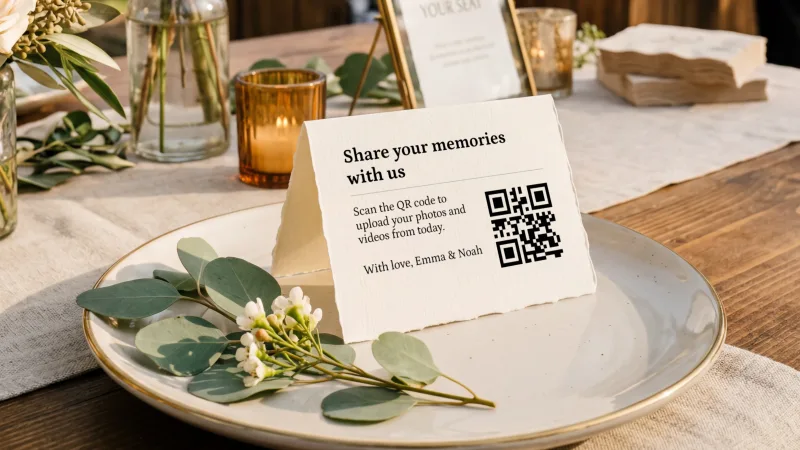
I would put the upload invitation where people have time to use it, such as the dinner tables. A QR code on a screen is useful, but guests need the code to remain visible long enough to scan. A printed card also lets someone return to the album while the screen shows something else.
Wedding Studio QR card at a reception place setting.
The QR placement guide helps with that physical decision. If you print the card yourself, use the QR template guide, then check a physical sample. The QR troubleshooting reference helps with scan failures. Keep the wording focused on contribution and separately explain if uploads may appear on a public screen.
Keep the live-display promise narrow until setup is confirmed
Wedding Studio lists live slideshow mode, but a feature label does not answer every production detail. Before making the display part of the running order, confirm how you launch it, what device stays connected, and which uploads can appear.
The album's private or shared viewing setting and a screen's content-review controls are separate questions. I would not assume that an album privacy toggle establishes a pre-approval queue for the live display. Ask specifically whether pictures can be reviewed before appearing and what happens when you hide an item.
Video needs its own check. A gallery may accept a clip while the screen treats it differently from a still photograph. Confirm whether video plays, whether sound is included and whether that behavior is appropriate during dinner or speeches.
If those controls do not meet your event's needs, collect in Wedding Studio, download selected stills and use a separate prepared slideshow for the screen. That adds a selection and playback step, but gives the operator a predictable set.
Kululu: give the live wall a proper comparison
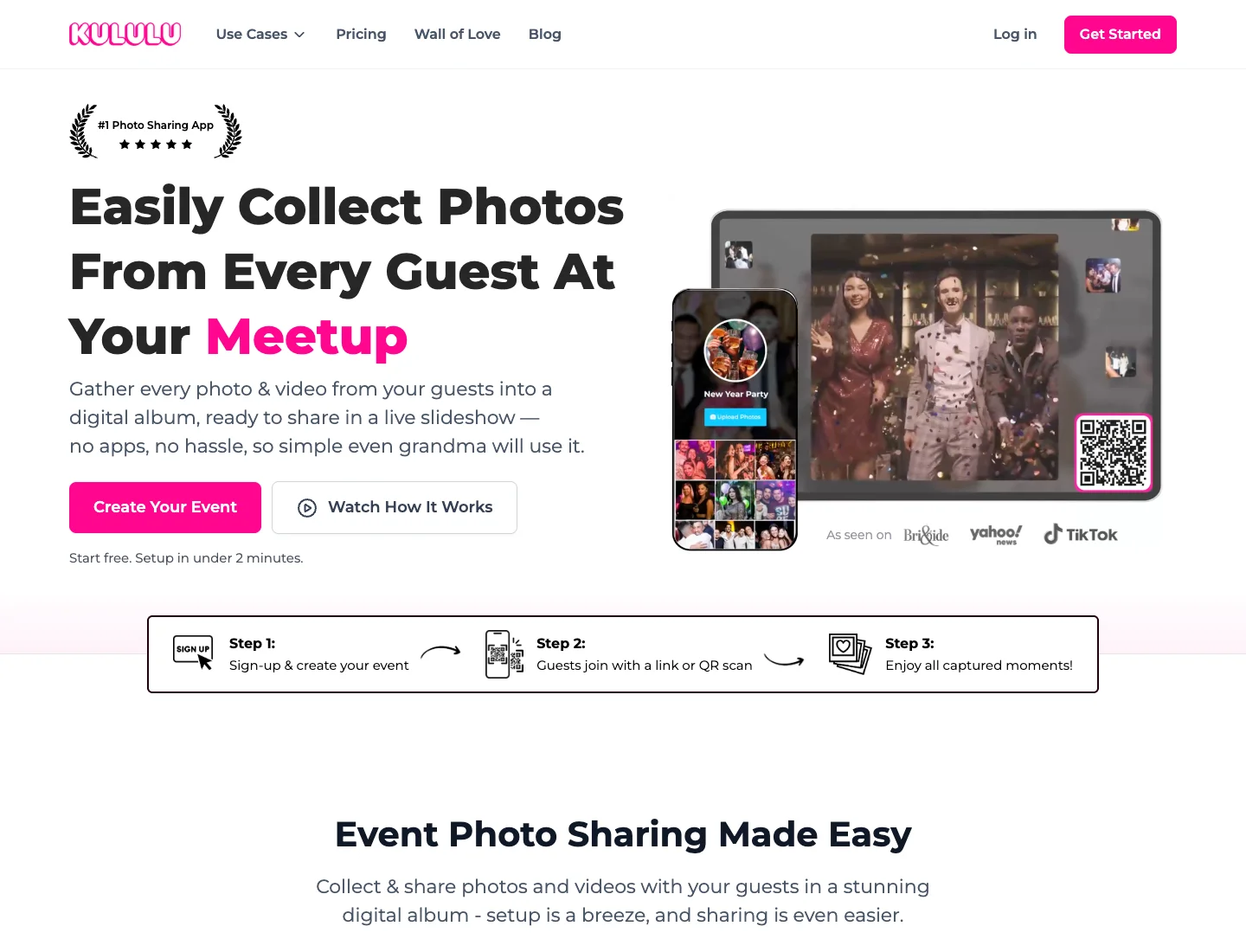
Kululu website
Kululu makes the live photo wall prominent in its product presentation. It describes guest photos and videos arriving through a QR code or link and appearing in a slideshow for televisions, projectors and other screens. I would include it when the display experience is more important than the later print workflow.
The useful comparison is not which homepage makes the wall look livelier. It is whether the qualifying plan provides the controls you want, whether the screen can keep running on the venue setup, and what happens when something needs to be removed.
Ask the same questions of every live-display product. Who can open the wall? Can you keep instructions on screen? Does the album need to remain open on a host device? Can a helper pause the display while another person continues managing uploads? The answer should shape the operator's responsibilities.
Kululu also has plan upload allowances. Confirm the allowance for the complete reception rather than judging it by a few sample contributions. A live display can encourage additional uploads, so an event close to its cap needs a deliberate plan.
Wedding Studio is the more natural first choice in my comparison when you want collection, voice messages and optional printed keepsakes around the album. Kululu deserves closer attention when the wedding brief starts with the live photo wall itself. I would choose between them after seeing the actual display controls, rather than inventing an advantage that has not been checked.
Canva: better for a montage you can rehearse
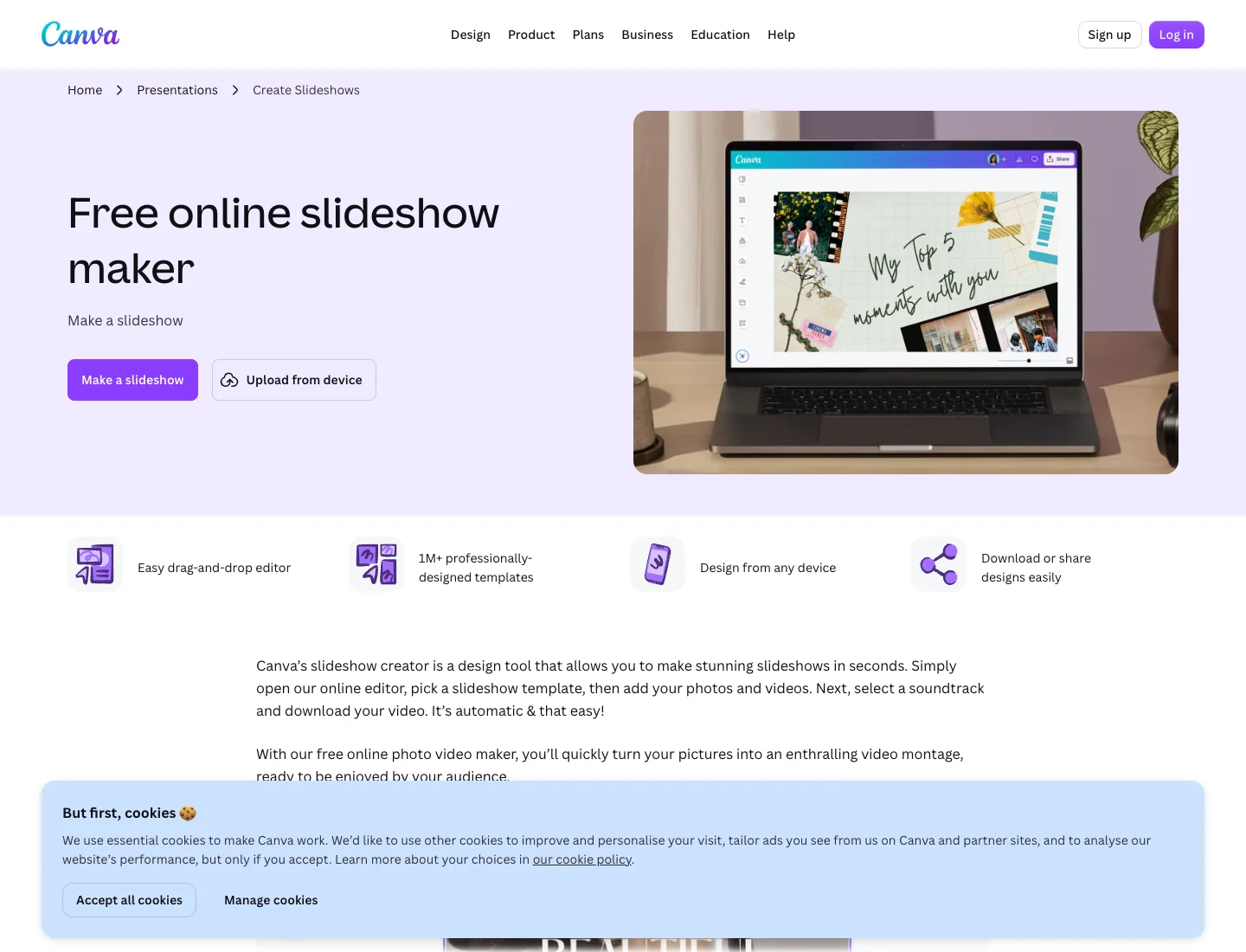
Canva website
Canva's slideshow creator lets you arrange photos and videos, add a soundtrack and download a video. I would choose that route for a prepared story because you decide the sequence before guests sit down.
Start by deciding what the montage is doing in the reception. A welcome loop seen casually in the background can use a different pace from a short film shown while everyone is watching. The available attention is a better guide than filling every template page.
Collect the source pictures into a folder and label them before designing. Ask each partner to approve the selection, particularly childhood photographs or family moments that may have context a designer cannot infer. Avoid a long run of photographs in which one side of the room recognizes nobody.
Use text sparingly and check it at the distance guests will watch. A caption legible on a laptop may be too small on a screen across a room. If an image has someone important near its edge, inspect the crop after changing the slide or video aspect ratio.
Choose music you have the right to use in the intended setting and any later sharing. A soundtrack available within a design tool does not mean every possible public performance or social upload is covered in the same way. Check the asset license that applies to your chosen track.
Export the finished file and rehearse that file on the venue device. Do not rely on a live editing session if the planned playback can be a local video. Check the first frame, the end and the point where the operator should stop or switch sources.
The screen is a separate part of the purchase
Software does not provide the projector, television, laptop, adapter or power supply by implication. Ask the venue exactly what is included and who sets it up. A screen listed in the room package may still need an external device to play your chosen source.
Confirm the connection between that device and the display. If you need an adapter, bring the adapter that works with the actual laptop. If the venue supplies the laptop, send the operator the required format or browser requirements ahead of time.
Place the screen where people can see it without competing with the meal service or a speaker. A lively display beside the person giving a speech can pull attention in the wrong direction. I would plan a pause cue as carefully as the launch cue.
Sound needs explicit ownership. A prepared montage with a soundtrack might need the DJ or audiovisual team, while a silent photo loop may simply use the venue display. Avoid discovering during dinner that the laptop sound is playing through its own tiny speaker.
Give one person the display job
A co-host can help with the album, but somebody still needs to know the display plan. Choose the operator before the wedding and give them a short set of instructions: when to start, when to pause, who approves content and what to show if the live feed stops.
For a prepared montage, send the final file with an unmistakable filename. Remove old versions from the operator's playback folder so the cue does not depend on remembering which attachment was approved.
For a live wall, choose a setup the operator can pause or stop, and confirm what removal controls the service actually provides. Give the operator permission to act without asking the couple across a crowded room. Explain that this is a practical responsibility, not an invitation to curate every photograph as it arrives.
A backup can be simple: a locally saved set of approved stills, a welcome slide or the prepared montage on the playback device. It should be something the operator can start quickly. A complicated backup requiring another login introduces its own failure points.
Build a simple display plan for the room
A screen in the background during drinks
For a background loop, I would use pictures that make sense without sound or a spoken introduction. People will look up at different moments, so a sequence that depends on everyone seeing its beginning may be less effective.
A live guest feed can suit this use because it changes during the event. Keep the upload invitation visible elsewhere, and choose a position where the screen can be enjoyed without becoming the focus of every conversation.
If you use a prepared loop instead, check how it restarts. An abrupt black frame or a menu at the end can make the display feel unfinished. Rehearse the actual playback behavior rather than assume the exported video will loop by itself.
I would also check whether the screen is readable in daylight. A projector that looks convincing in a dark demo can be hard to see in a bright drinks reception. The venue's equipment and room lighting determine more of that result than the slideshow software.
A planned montage everyone watches
Treat a prepared montage like an item in the running order. Give the operator a clear start cue, ask who introduces it and decide whether the room lights change. The file should be ready on the playback device before the guests arrive.
For a piece with music, coordinate the sound with the DJ or audiovisual team. Confirm the intended volume and how the sound starts and stops. A separate laptop volume slider is easy to overlook when several people are managing different parts of the evening.
Check the opening and closing frames with particular care. The opening should make sense before the sound starts, and the ending should give the operator an obvious place to finish. If the next event is a speech, decide whether the screen goes dark or returns to a neutral slide.
I would keep a locally saved copy and a second accessible copy of the final file. The purpose is to avoid relying on a last-minute download, not to create several differently named versions that confuse the operator.
A live wall later in the evening
A late-evening wall may receive a different mix of photographs from the dinner collection. Decide who can pause or remove content and whether the screen should run continuously. A lively contribution is not automatically appropriate for every audience in the room.
Tell guests their pictures may appear on the screen. That small explanation makes the context clearer than a generic private-album label. Keep your chosen privacy and display settings consistent with that invitation.
A helper needs to know what to do if the wall stops receiving new pictures. They should be able to distinguish a guest-upload issue from the display device losing its connection. Agree a simple fallback rather than asking the couple to troubleshoot while the reception continues.
I would finish the wall before the room closes and save any local fallback files with the rest of the event materials. Someone should know who collects the laptop, adapter and other equipment, especially if it belongs to a friend.
Choose a moderation approach that matches the audience
A display can be uncurated, reviewed before showing, or built from an approved collection, depending on the actual product controls. I would establish which approach the chosen service supports before describing it to guests or the venue.
For a mixed family audience, review before display may be valuable. For an informal group with a trusted audience, you may accept a lighter approach. Neither is a reason to invent a control that has not been confirmed in the product.
If pre-approval is unavailable, a curated fallback gives you another route: collect privately, choose pictures and show the approved selection. That adds an operator task, but it can be a better match than an automatic feed you are uncomfortable running.
Agree how removal requests are handled. A guest should not need to find the couple to say that they would rather a picture not be shown. The display helper can be the practical contact and can act according to the settings you have chosen.
The same thinking applies to videos with sound. A clip may be welcome in the album but unsuitable for playing aloud at dinner. Check the screen behavior before inviting videos specifically for the wall.
Make the screen understandable without perfect hearing or eyesight
A montage with spoken messages should have enough visual context that someone can follow it when the room is noisy. Captions can help when you have time to add and proofread them, especially for a recorded message that matters to the sequence.
Avoid relying on tiny names or a long paragraph of text. People are watching from different seats, and the clearest slide on the laptop may be unreadable at the back of the room. I would view a sample at the actual distance before deciding the typography.
For a live wall, check the treatment of portrait and landscape photographs. A display may crop or add space around images differently, so use sample pictures with faces near the edges. The desired result is that the screen respects the photograph, rather than forcing every file into an awkward crop.
Position also affects access. A screen behind a pillar, a speaker or a standing crowd cannot be fixed by software. Ask the venue to check sightlines from seated positions before finalizing the room arrangement.
Rehearse the failure you are willing to tolerate
A useful rehearsal includes the normal launch and one interruption. Ask the operator to stop the display, switch to the backup and restore the intended source. That is more informative than watching the opening work once on the couple's own laptop.
For a live wall, check what remains visible if the connection drops. For a prepared montage, check that the local file still plays without depending on the editor being open. Keep the outcome within what you have actually confirmed on the chosen setup.
I would accept a simpler display with a calm fallback over a more ambitious setup nobody is ready to operate. The photographs still belong in the album even if the live screen becomes a welcome slide for the evening.
Budget for the whole display evening
Wedding Studio's album plans are one-time purchases. Album access runs for 24 months after the wedding, and printed cards and photobooks are paid options. Check the current plan's guest capacity alongside your event requirements.
For any slideshow route, add equipment hire, venue technical support and any paid design assets to the software cost. A free editor can still result in a paid soundtrack, premium template element or screen rental. Compare the final project rather than the word free on the landing page.
After the reception, save the album archive before its access period ends. The display is temporary, while the contributed photographs may later belong in a guest-photo photobook. Keep the full collection even if the screen showed a smaller curated set.
I would choose Wedding Studio for an album that can participate in the reception, Canva for a rehearsed montage, and a dedicated Kululu comparison when the live wall leads the brief. Make the final display decision only after the venue device, content controls and fallback have been checked together.
Invite guests to add photos and videos to your album without installing an app. Choose optional printed cards and save your downloads before album access ends.